

Know where to start
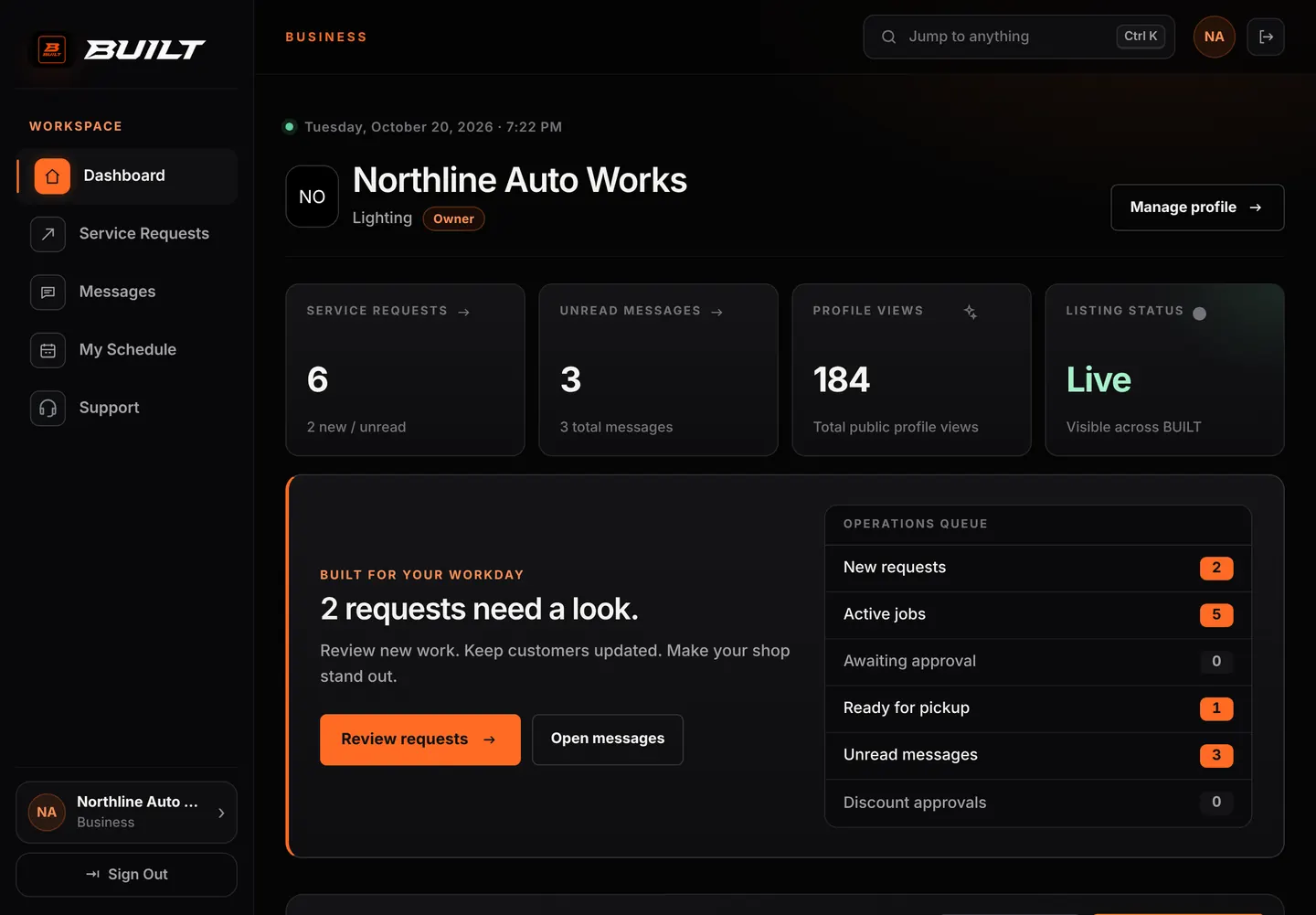
The queue shows exactly what is waiting, with counts.
Business Dashboard
The Business dashboard is the first screen after sign-in. Key numbers lead, an operations queue shows what is waiting, and every shop tool is grouped by area so owners, managers, and technicians get to work faster.
Who it’s forOwners see the full dashboard. Managers, front desk staff, and installers see the tools their role allows.
Live demo of real BUILT screens with example data
How it works
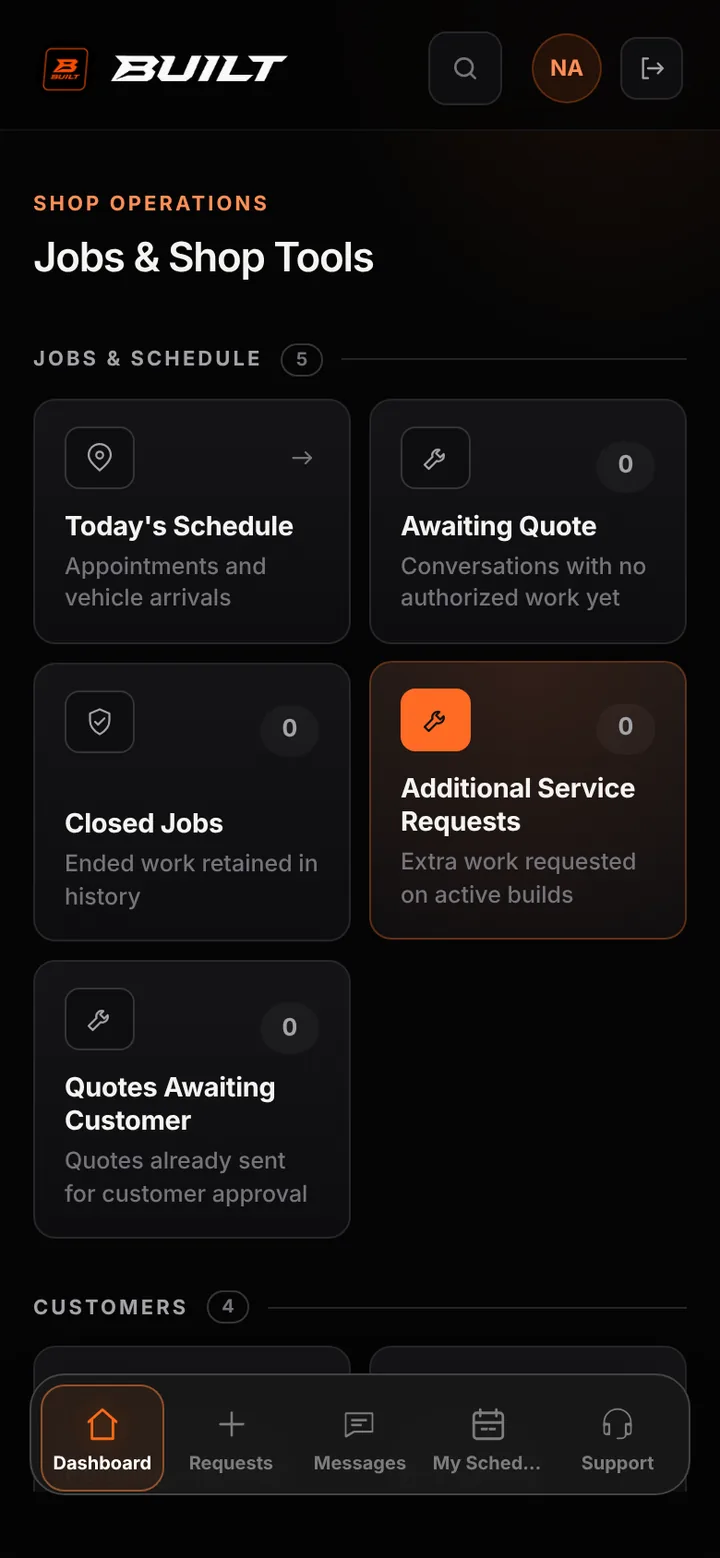
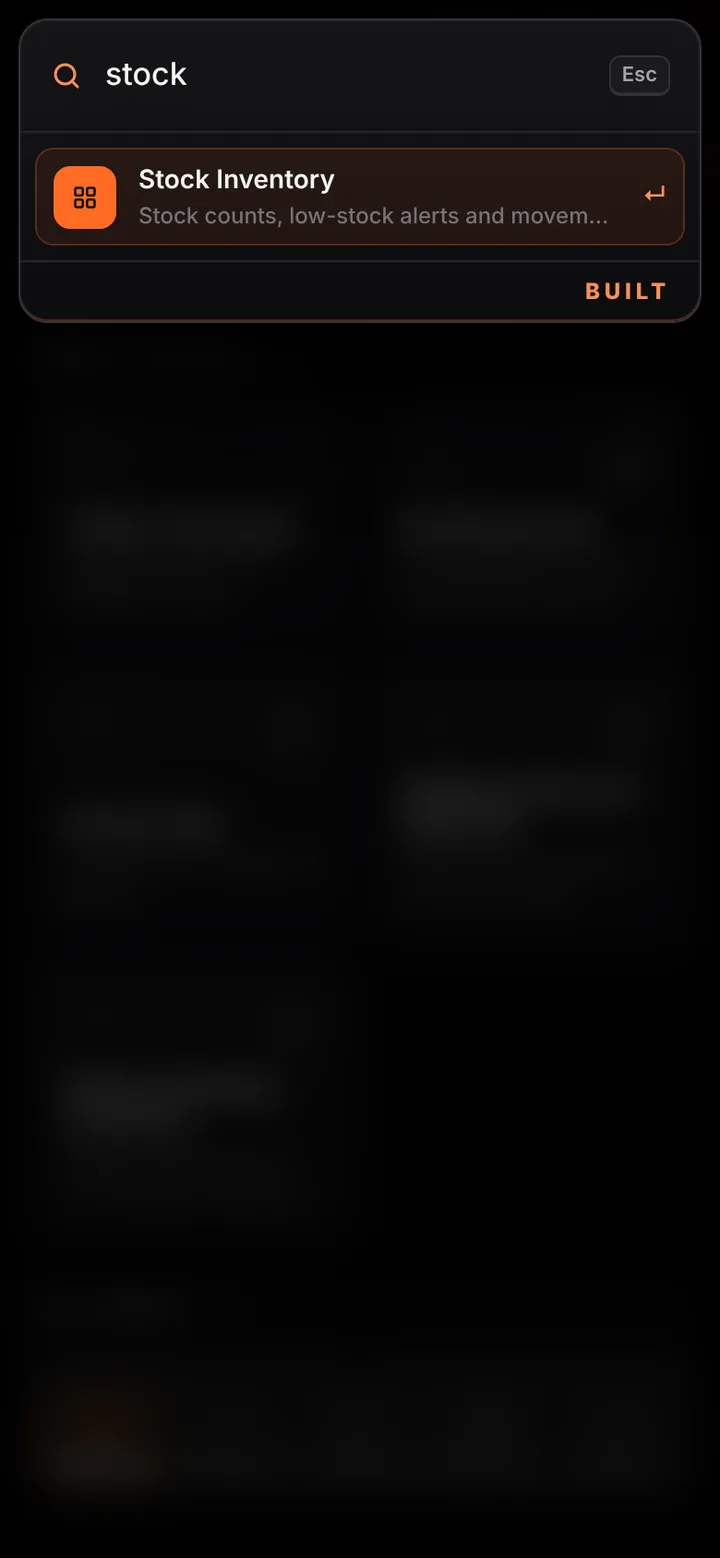
Number tiles show service requests, unread messages, profile views, and listing status. The priority card names the next step and sits beside an operations queue with live counts for new requests, active jobs, jobs awaiting approval, vehicles ready for pickup, unread messages, and discount approvals — each one opens its list. Jobs & Shop Tools groups the full workspace into jobs and schedule, customers, team and approvals, reports and financials, and catalog, inventory, and integrations. Owners with more than one location switch shops from the dashboard, and search jumps to any tool, page, or setting by name.
Inside the app
Scroll — the screen follows along.
Live counts for requests, messages, profile views, and listing status, with the operations queue below.
Jobs & Shop Tools opens the full workspace, grouped by area, with counts on the tools that have work waiting.
Search any tool, page, or setting by name and open it in one step.
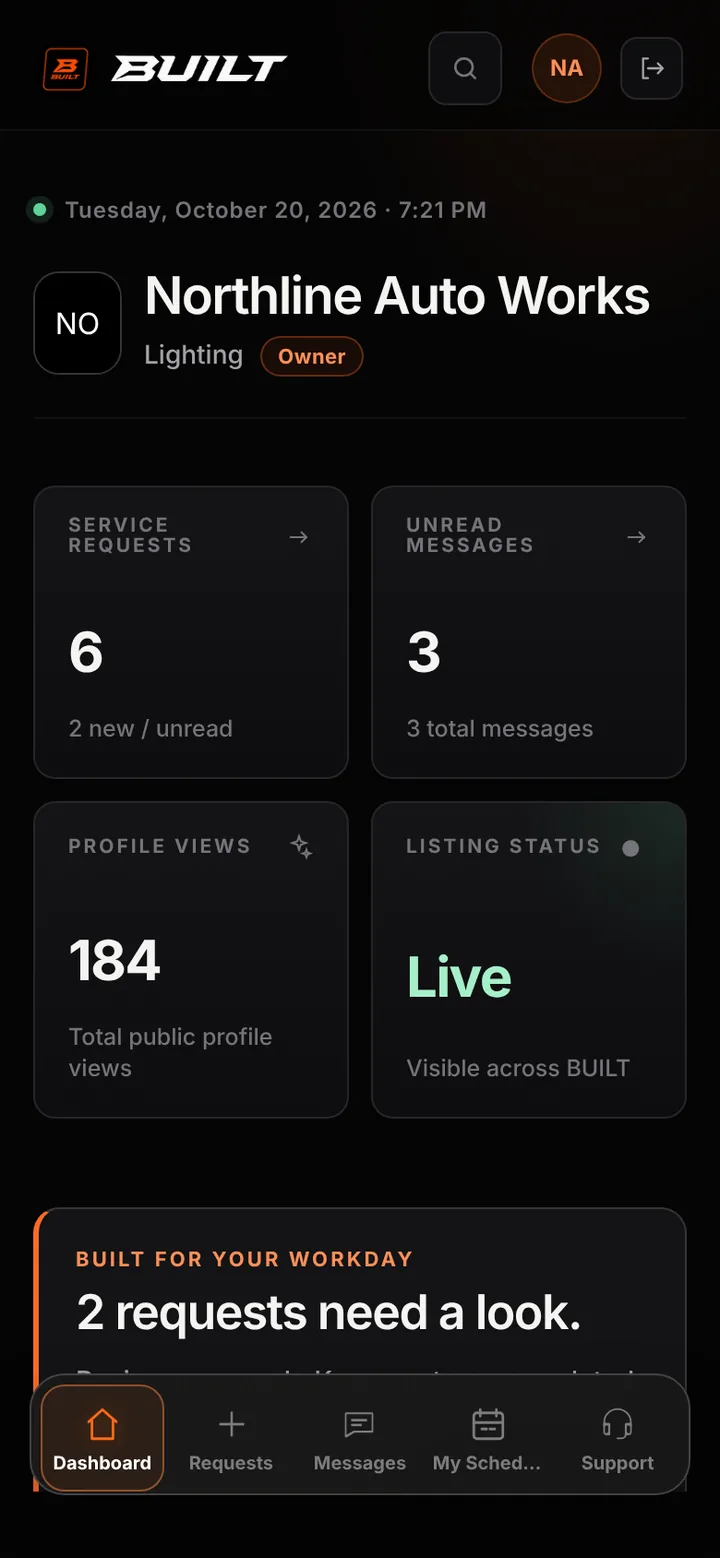
The queue shows exactly what is waiting, with counts.
Owners move between locations without signing out.
Managers, front desk, and installers see what their role allows.
Good to know
See BUILT in action
Walk through the tools, explore your workflow, and talk about what fits your business.
Book demo